Automation series 2

This is a monthly series where we pick some common use cases that have been either discussed or most asked about in our community and explain how they can be achieved using one of the automation capabilities in Zoho Desk.
Creating recurring tickets for tasks like system updates, firewall checks, unused data clearance and others is one of the most sort after action in Zoho Desk. In this month's topic, we will discuss how you can use a combination of custom functions and the recently launched feature called "Schedule" to create recurring tickets in Zoho Desk.
To achieve this, you need to write a custom script first, let's see how you can do that:
- Go to Setup > Functions under Developer Space
- Click "New Function" from the top right corner
- Give a name to your custom function
- Add a description(Optional)
- Under Category select "schedules"
- In the Deluge field, add the following script:ORGID="xxxxxxx";
recordValue = {"subject" : "Create ticket", "departmentId":"168XXXXXXXXXXXXXX044", "contactId":"1689XXXXXXXXXXXXXX005"};
response = zoho.desk.create(ORGID, "tickets", recordValue);
Note: The ORGID, Department ID and the Contact ID has to be updated based on your setup.
* To get the ORGID, navigate to "setup >> Developer space >> API".
* To get the Department ID, navigate to "Setup >> General >> Departments", select the department in which you prefer to create the ticket, copy the number appended in the URL.
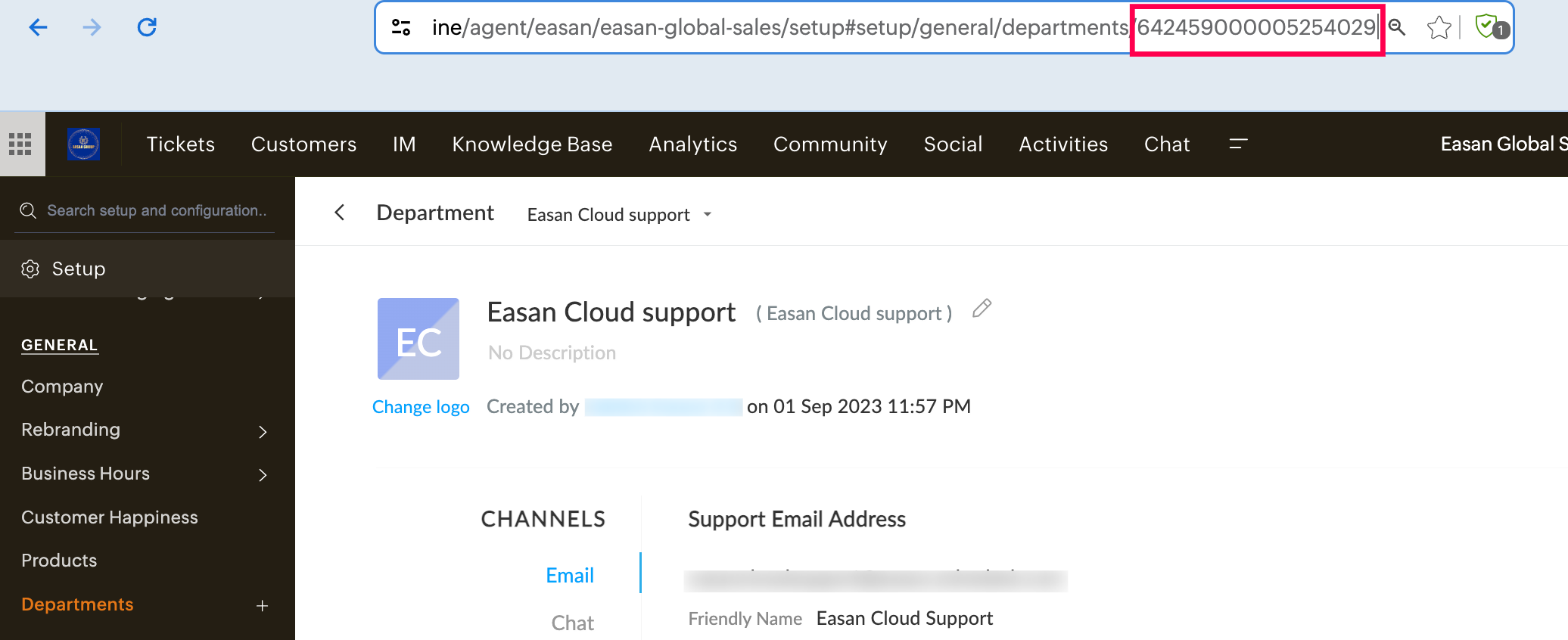
* To get the Contact ID, access the contact for which you prefer to create the ticket under "contacts/customer", copy the number appended in the URL.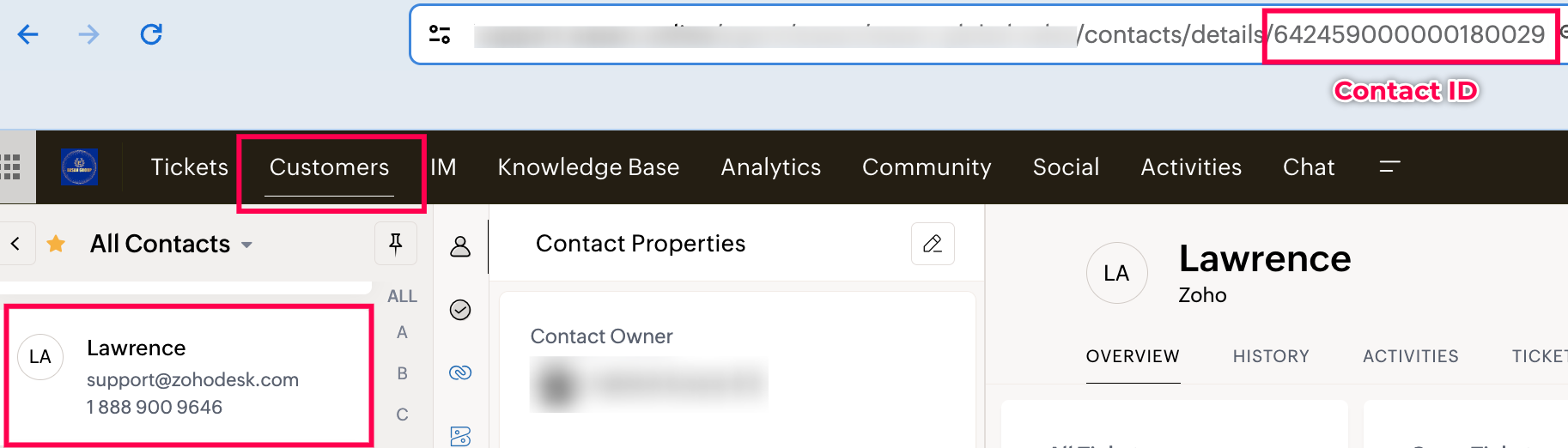
- You can also fetch these IDs by making the following API calls for Dept ID and Contact ID.
- Click Save
With the custom script in place, follow these steps to create a schedule for your ticket creation.
- Go to Setup > Schedules under Automation.
- On the Schedules page, click New Schedule in the upper-right corner.
- In the Add Schedule page, do the following:
- Click the Execute On field to specify the date and time at which the function should be executed.

- Set the schedule frequency from under the Repeat drop-down field.

You can execute the schedule either once (select, Never) or on an hourly, daily, weekly, monthly, or yearly basis. - Select the Custom option to run the schedule either on any specific hour/day/week/month/year along with recurring frequency and end point.

- Click Associate Function and choose the custom function that you created earlier to be associated with the schedule.

- Click Save.
This should help you create recurring tickets in Zoho Desk. If you have any questions, please leave them as comments below.
Topic Participants
Sathish | Kumar K B