Setting up your domain
IMPORTANT: Only the Administrator of your Innovation Cloud Startup environment have access to the System settings options.
To configure system details:
1. Click on your name in the upper right corner of the screen and from the drop-down menu choose the System settings option. Go to the System Management tab.
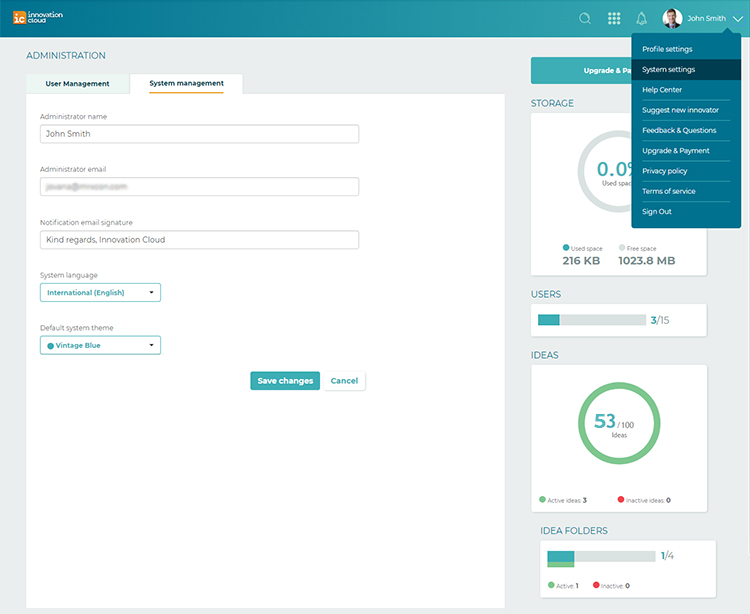
2. You have options to change: Administrator name, Administrator email and Notification email signature. There is also an option to change a system language and a default system theme.
3. Save your changes.
Related Articles
Setting up approval flow
Feature availability Plan Free Express Professional Approval Flow ❌ ❌ ✅ You can set up an approval process for articles within your knowledge base. You can assign specific manual admins or contributors as approvers and make sure articles within the ...cloud support PDF
How to install Windows 11 in a virtual machine or template NOTICE: Please see the requirements for this process below. Hive Fabric Version 8.5.2 or later This process has been tested Windows 11 24H2, other versions may have different install options. ...cloud support PDF
How to install Windows 11 in a virtual machine or template NOTICE: Please see the requirements for this process below. Hive Fabric Version 8.5.2 or later This process has been tested Windows 11 24H2, other versions may have different install options. ...Test as
Overview The Opportunity View page in BluePlanner allows users to define, manage, and model business opportunities such as pricing changes, distribution adjustments, promotional activities, and more. Each opportunity tracks a potential business ...Manage email notifications
1. To manage your email notifications, click on your name in the upper right corner of the screen and from drop-down menu choose the Profile Settings. 2. Below your username and biography, there is an option that enables you to Turn on or Turn off ...